fact_checkUploading & Reviewing Policies
Review Policy Limits, Coverage Gaps & Underwriting Analysis
Updated October 2026•4 min read•For: Producers & Assistants
verifiedQuick Summary
Click "Review Policy" on any policy card to open the 5-Tab Review Policy drawer (Analysis, Declarations, Endorsements, Exclusions, and Compliance). Inspect the Underwriting Brief, Policy Conditions & Warranties, and Declarations Lineage on the Analysis tab, then click "Review Declarations & Approve" to verify extracted limits and click "Approve & Save".
In this article
1. Navigate the 5-Tab Review Policy Drawer
Clicking Review Policy on any policy card for ACME Contractors, LLC opens the slide-over inspection drawer organized into five specialized tabs:
- Analysis: Executive underwriting brief, Certificate of Insurance guidance, policy conditions & warranties, Commercial Umbrella underlying schedule audits, and declarations lineage.
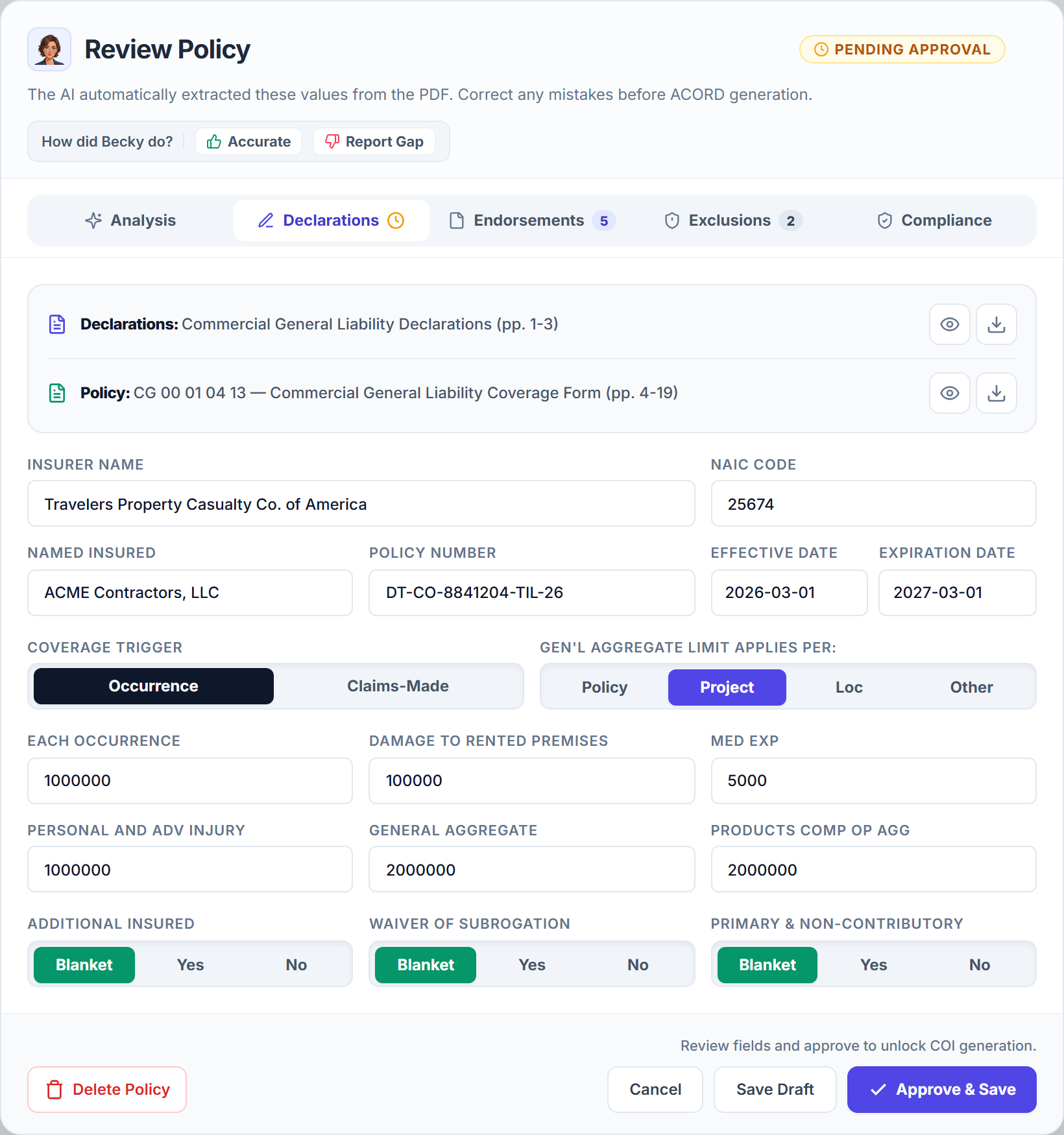
- Declarations: Sliced Declarations and Base Policy PDF viewers, carrier NAIC code, policy dates, coverage trigger, aggregate scope, core dollar limits, and Blanket endorsement toggles.
- Endorsements: Complete forms schedule census with in-browser PDF slicing for every attached Additional Insured, Waiver of Subrogation, and Primary & Non-Contributory form.
- Exclusions: Extracted coverage exclusions and contractor restriction clauses with severity badges and page citations.
- Compliance: Automated audit comparing the policy against active certificate holder requirements on file.
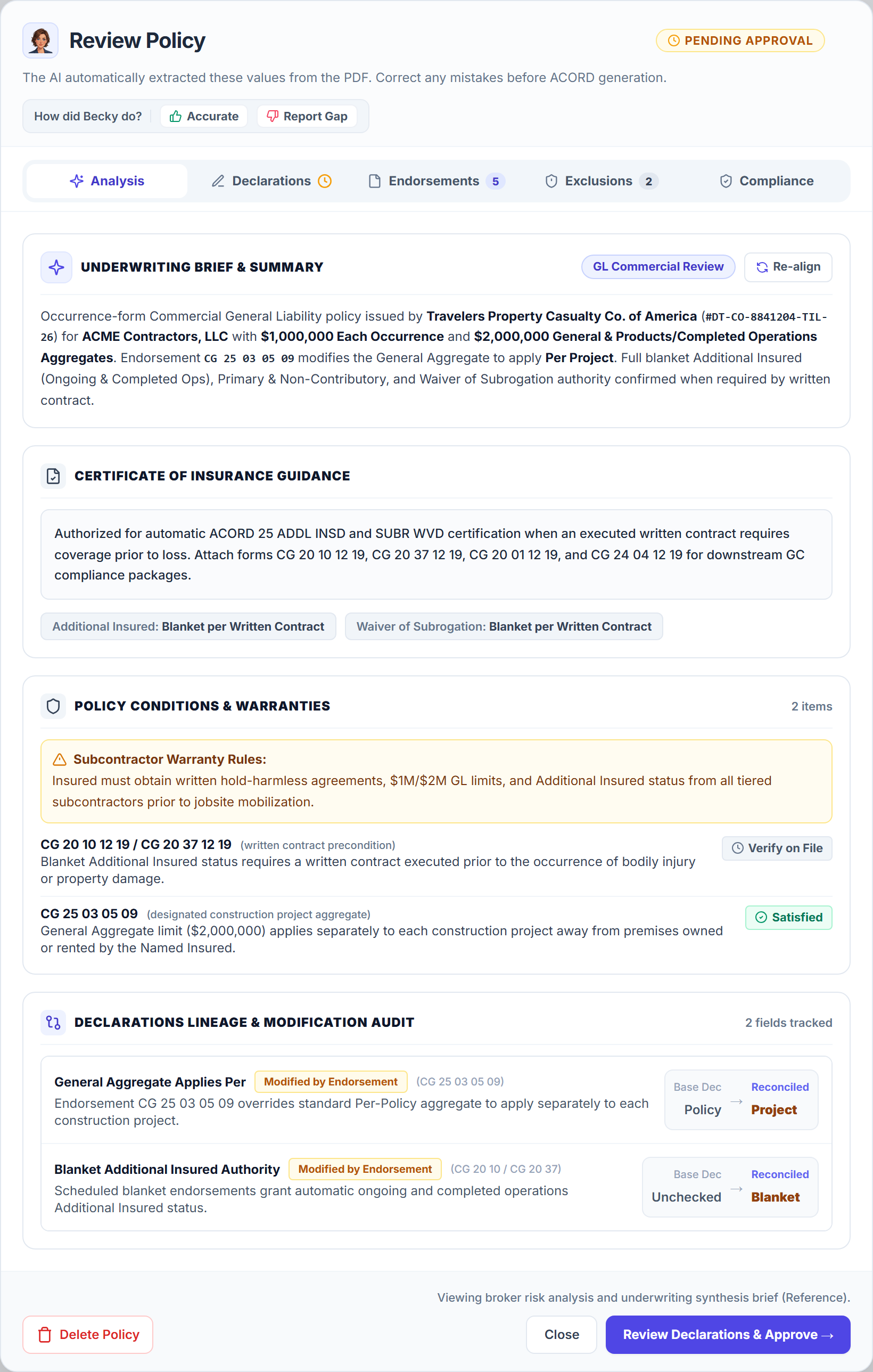
2. Tab 1 (Analysis): Underwriting Brief, Warranties & Lineage
Before approving a policy, inspect the automated underwriting sections on the Analysis tab:
- Underwriting Brief & Summary: Summarizes carrier, policy number, core limits, aggregate modifications, and blanket authority. Click Re-align at any time to re-run synthesis after manual edits.
- Certificate of Insurance Guidance: Confirms whether Additional Insured and Waiver of Subrogation authority is Blanket per Written Contract or restricted to a closed schedule.
- Policy Conditions & Warranties: Highlights subcontractor insurance warranties and written-contract preconditions alongside Satisfied or Verify on File status badges.
- Declarations Lineage & Modification Audit: Shows side-by-side Base Dec → Reconciled values whenever an endorsement modifies the base declarations page.
3. Tab 2 (Declarations): Verify Limits, Triggers & Approve Policy
- Click Review Declarations & Approve → in the drawer footer (or select the Declarations tab directly).
- Use the top document box to preview or download the sliced Declarations pages or Base Policy Coverage Form PDF.
- Verify or edit the Coverage Trigger (Occurrence vs. Claims-Made), Gen'l Aggregate Limit Applies Per (Policy, Project, Loc, or Other), core dollar limits, and Blanket / Yes / No authority toggles.
- Click Approve & Save in the bottom-right footer to mark the policy Approved and unlock ACORD certificate generation.
Frequently Asked Questions
When you upload a Commercial Umbrella or Excess policy, Becky cross-checks the Schedule of Underlying Insurance against the client’s active General Liability, Auto, and Employers’ Liability policies. If an underlying policy is missing, expired, or carries limits below the required attachment point, Tab 1 (Analysis) flags a Critical Coverage Gap warning.
Related Guides in Uploading & Reviewing Policies
Was this article helpful?
Let our team know if you found what you needed.
arrow_backPrevious Article
Upload Policies & Documents in Becky's Inbox
Next Articlearrow_forward
Manage Endorsements, In-Browser Slicing & Renewals
Automate Your Commercial Agency Operations
Put Becky to work for your agency to review policies, audit coverage gaps, and issue verified ACORD certificates in seconds.