Upload Policies & Documents in Becky's Inbox
1. Drag & Drop Files into Becky's Inbox
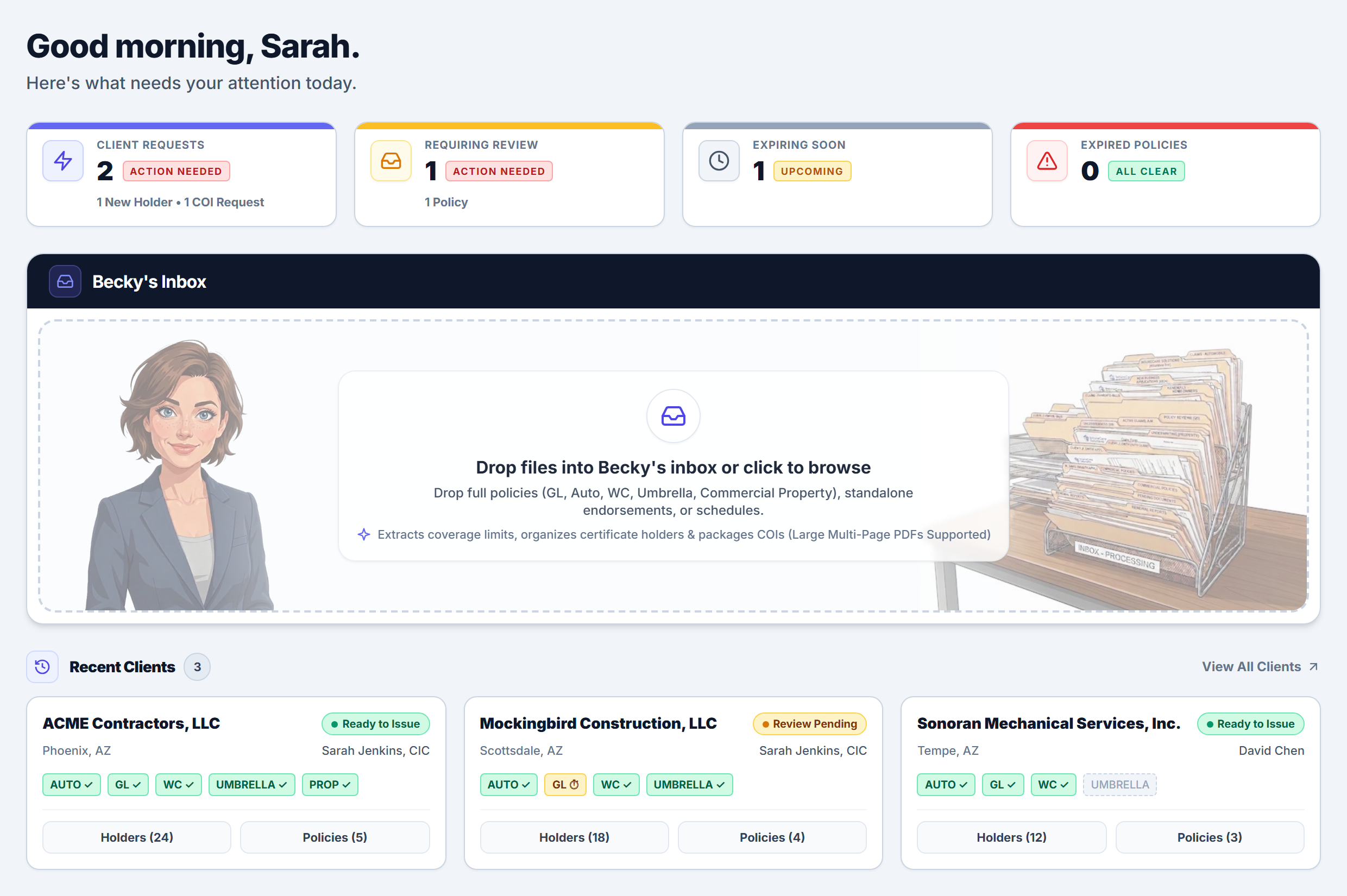
You don't need to pre-sort PDFs by client or line of business before uploading. Becky's Inbox on your main Dashboard accepts single or multiple files at once:
- Click Dashboard in the dark left navigation sidebar.
- Locate the Becky's Inbox card directly below your four agency status cards (Client Requests, Requiring Review, Expiring Soon, and Expired Policies).
- Drag and drop your carrier PDFs (full policy packages, declarations pages,
IL 12 01policy changes, or schedules) onto Drop files into Becky's inbox or click to browse. - Becky displays a live intake card as she matches the Named Insured to your client account (such as ACME Contractors, LLC) and hands off extraction to the background queue.
2. How Multi-Line Commercial Packages Are Unbundled
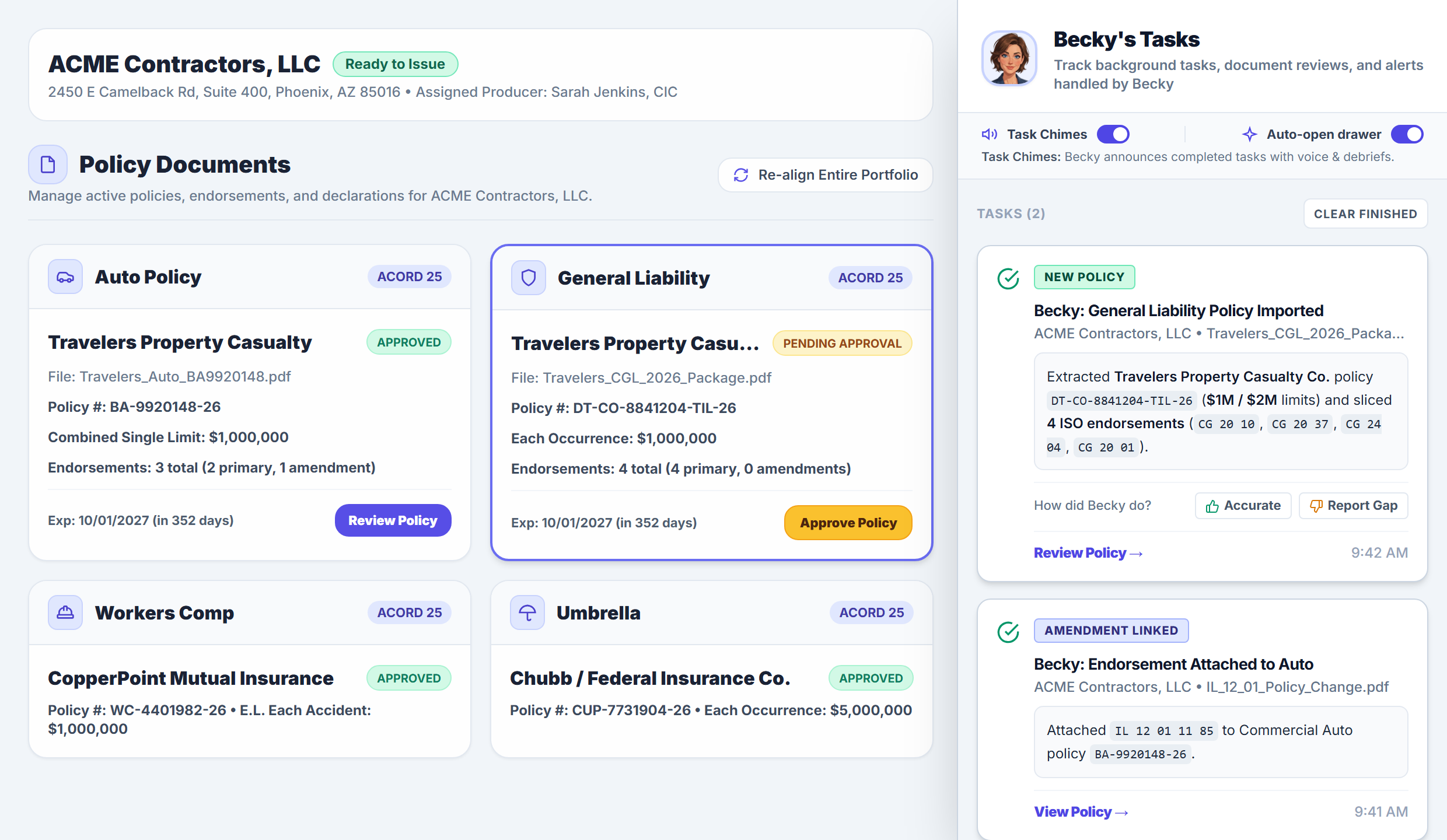
When you upload a combined Commercial Package Policy (CPP) or Businessowners Policy (BOP), Becky automatically splits the package into distinct Line of Business cards inside the client's Policy Documents tab (Auto Policy, General Liability, Workers Comp, Umbrella, and Commercial Property) and links each card to the exact page ranges in the master PDF.
3. Track Completed Reviews in Becky's Tasks
As soon as extraction completes, the Becky's Tasks slide-over drawer opens on the right side of your screen (and announces completion if Task Chimes is enabled):
- Extracted Policy & Endorsement Summary: Each task card displays a status badge (such as NEW POLICY or AMENDMENT LINKED), the carrier name, policy number, core limits, and sliced ISO endorsement codes (for example,
CG 20 10,CG 20 37,CG 24 04, andCG 20 01). - Instant Accuracy Feedback: Use the How did Becky do? prompt on any completed card to click Accurate or Report Gap.
- 1-Click Policy Review: Click Review Policy → on the task card (or click Approve Policy on the highlighted card in Policy Documents) to open the 5-tab Policy Review Drawer.
4. Manage & Approve Additional Commercial Coverages
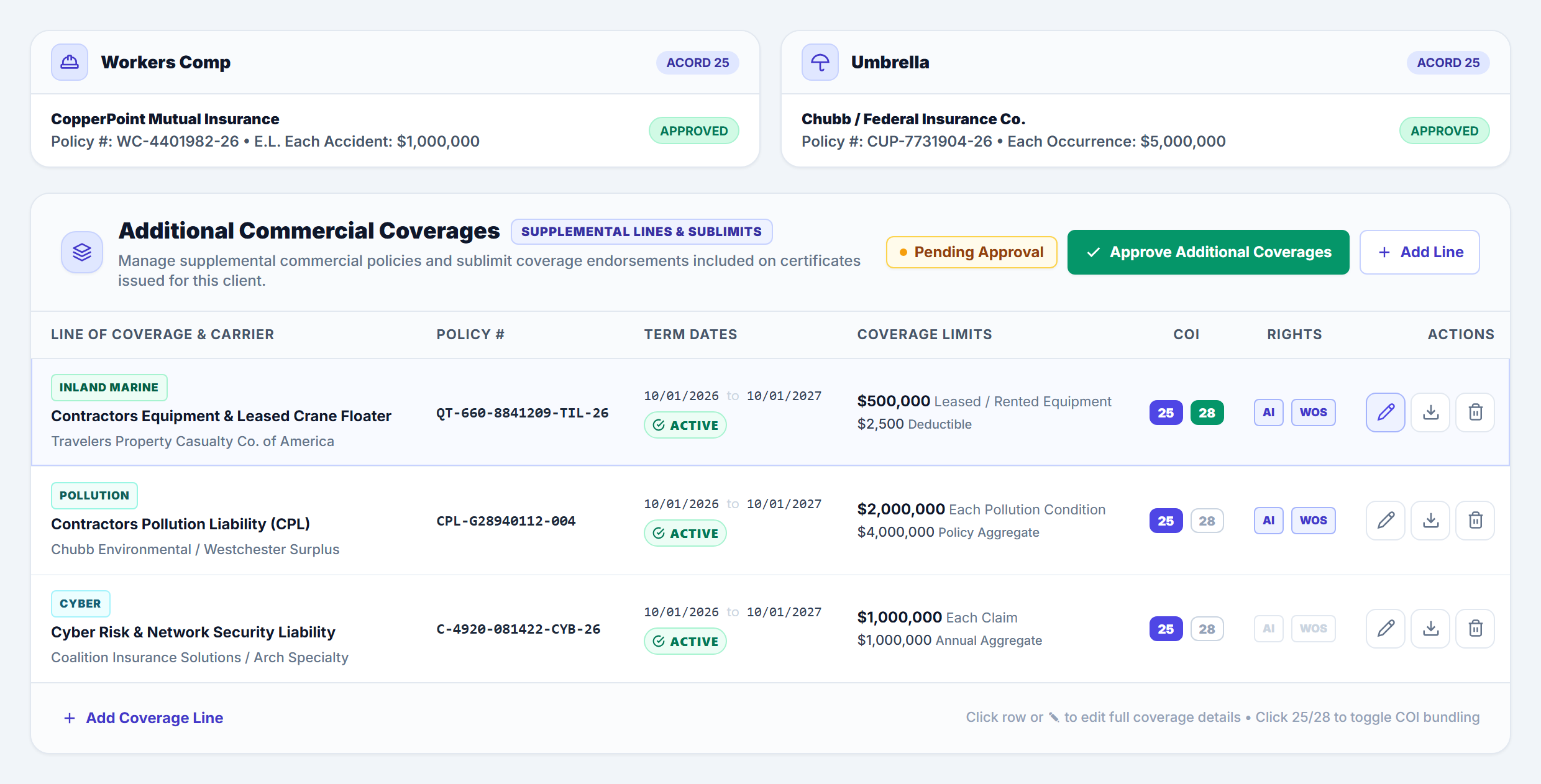
Directly below the 5 primary commercial policy cards on the client's Policies tab, the Additional Commercial Coverages section (Supplemental Lines & Sublimits) manages specialty policies and sublimit endorsements such as Inland Marine / Contractors Equipment, Cyber Liability, Contractors Pollution, Professional Liability (E&O), Employment Practices (EPLI), and Commercial Crime:
- How to Add a Line: Drop any specialty declarations page into Becky's Inbox to auto-populate a row, or click + Add Line at the top right of the table (or + Add Coverage Line in the footer) to add a supplemental policy or sublimit manually.
- How to Update Coverage Details & Inline Toggles:
- Full Edit Modal (Pencil Icon): Click any row or the Pencil (Edit) action button to open the Edit Commercial Coverage modal, where you can update the Line of Coverage / Name, Coverage Type / Category badge, Policy #, Carrier / Insurer, Effective / Expiration Dates, and structured Limit 1 and Limit 2 amounts and labels.
- Inline COI & Rights Toggles: Click 25 (ACORD 25 Liability) or 28 (ACORD 28 Property Evidence) in the COI column to control certificate auto-bundling, and click AI (Additional Insured) or WOS (Waiver of Subrogation) in the Rights column. If more than 5 lines have 25 enabled, the first 5 render in the ACORD 25 Line 5 table box and remaining lines automatically overflow into Box 101 Remarks.
- How to Delete a Line: Click the Trash (Delete) icon in the Actions column on the right side of any row to remove that coverage line from the client's schedule (or click the Download icon next to it to open the source declarations PDF).
- How to Approve Additional Coverages: Whenever a new specialty line is extracted, added, or modified via the modal or inline toggles, the section displays an amber Pending Approval badge. Once every row has a complete Coverage Name, Policy #, Limit 1 Amount, and active (non-expired) term dates, click the green Approve Additional Coverages button to switch the status to All Coverages Approved so those coverages are authorized for certificate generation.
Frequently Asked Questions
Related Guides in Uploading & Reviewing Policies
Was this article helpful?
Let our team know if you found what you needed.
Manage Team Roles, Workspace Views & Navigation
Review Policy Limits, Coverage Gaps & Underwriting Analysis
Automate Your Commercial Agency Operations
Put Becky to work for your agency to review policies, audit coverage gaps, and issue verified ACORD certificates in seconds.