verifiedIssuing Certificates & Managing Holders
Issue ACORD 25 Liability Certificates & Descriptions
Updated October 2026•3 min read•For: Producers & Assistants
verifiedQuick Summary
Once a client’s policies and Baseline ACORD Description are approved, open the Certificate Holders tab to download or email a signed ACORD 25 PDF (bundled with matching Additional Insured and Waiver endorsements) in under 2 seconds.
In this article
1. Confirm Your Baseline Description of Operations
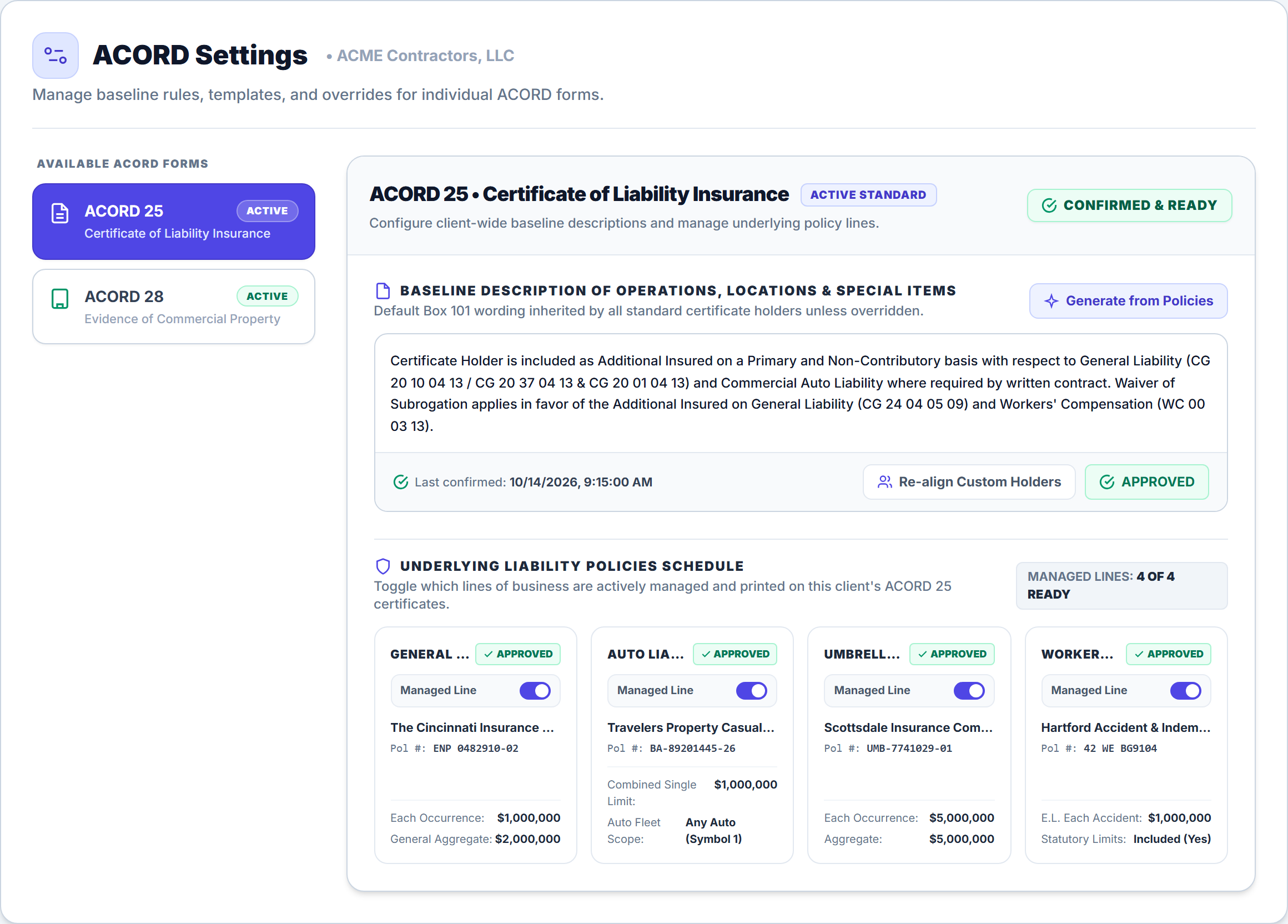
When you approve policies for a client such as ACME Contractors, LLC, Becky drafts a clean Baseline Description of Operations, Locations & Special Items reflecting their blanket endorsements:
- Open the client workspace and click the ACORD Settings tab (defaulting to ACORD 25 (Liability)).
- Review or edit the Baseline Description of Operations, Locations & Special Items text (or click Draft with AI / Re-draft with AI to re-synthesize from active endorsements) and verify which active policies have their Managed Line switch enabled under Underlying Liability Policies Schedule.
- Click Confirm & Save to lock in the baseline (the status badge updates to APPROVED).
2. How the 3-Tier Description Hierarchy Works
Insure Assist AI keeps Box 101 remarks organized across three clean levels without duplicating sentences:
| Tier | Where You Edit It | What Belongs Here |
|---|---|---|
| Tier 1: Client Baseline | ACORD Settings Tab | Standing blanket wording that applies to the insured’s account as a whole |
| Tier 2: Holder Master | Edit Certificate Holder Drawer | Holder-specific Additional Insured, Primary & Noncontributory, and Waiver wording |
| Tier 3: Project COI | Project Certificates Drawer | Job number, project address, and contract-specific instructions for a single job |
3. Generate, Download or Email an ACORD 25 Certificate
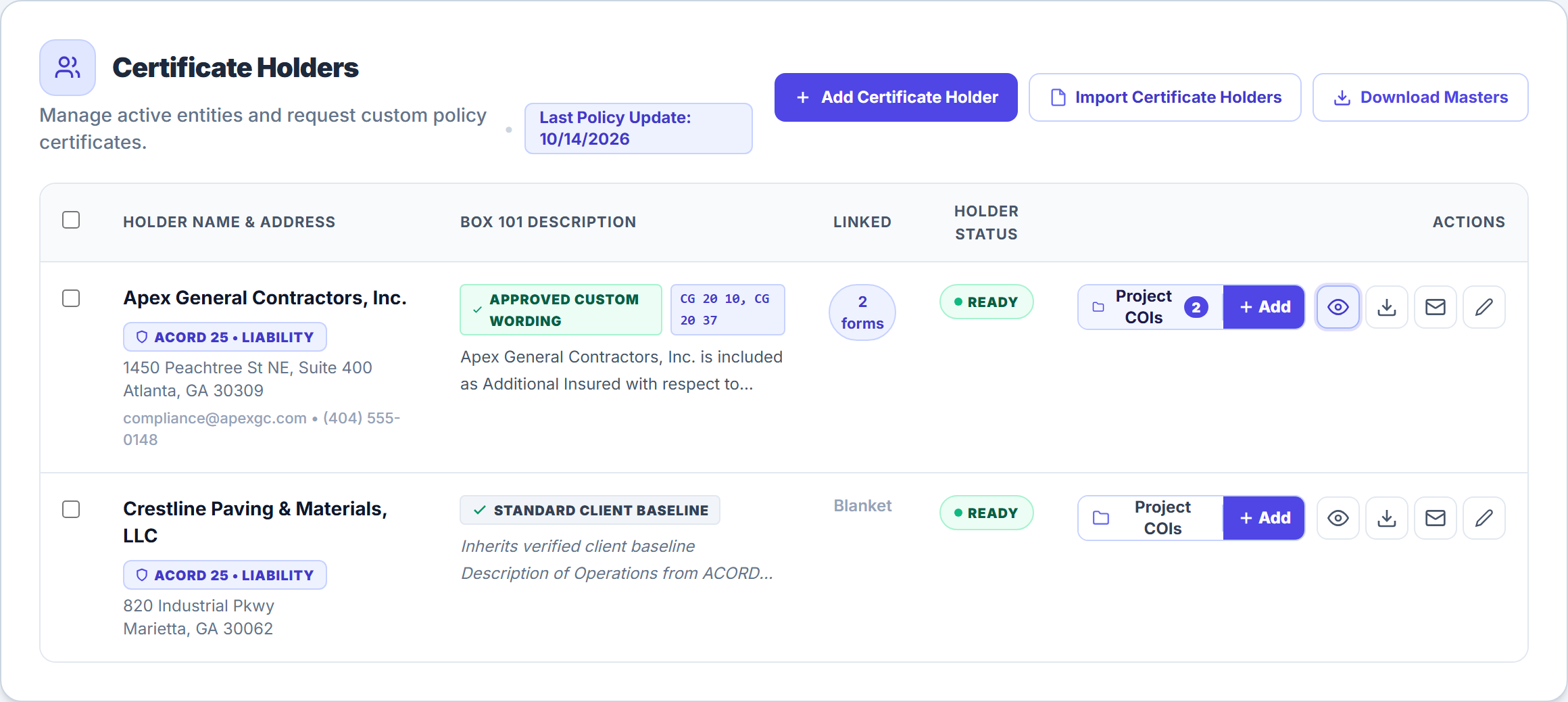
- Open the Certificate Holders tab on the client workspace.
- Locate the holder (for example, Apex General Contractors, Inc.) and use the quick action icons on the right side of the row: click the Eye icon (View Master Certificate) to preview the signed ACORD 25 PDF and attached endorsements, the Download icon (Download Master Certificate) to save locally, or the Envelope icon (Email Master Certificate) to dispatch the packet directly from your connected agency email.
- Need to download updated Master COIs for every active holder at once after a renewal? Click Download Masters in the top-right header.
Frequently Asked Questions
To protect your agency from E&O exposure, ACORD 25 generation is locked if: (1) a required policy is expired or unapproved, (2) the client’s Baseline Description in ACORD Settings is unconfirmed, or (3) the assigned producer has not saved an Authorized Representative signature.
Related Guides in Issuing Certificates & Managing Holders
Was this article helpful?
Let our team know if you found what you needed.
arrow_backPrevious Article
Manage Endorsements, In-Browser Slicing & Renewals
Next Articlearrow_forward
Issue ACORD 28 Commercial Property Evidence
Automate Your Commercial Agency Operations
Put Becky to work for your agency to review policies, audit coverage gaps, and issue verified ACORD certificates in seconds.