content_cutUploading & Reviewing Policies
Manage Endorsements, In-Browser Slicing & Renewals
Updated October 2026•4 min read•For: Producers & Assistants
verifiedQuick Summary
Open Tab 3 (Endorsements) in the Review Policy drawer to inspect extracted ISO and carrier endorsement forms (such as CG 20 10, CG 20 37, CG 20 26, and CG 24 04), link SPECIFIC endorsements to certificate holders, toggle [25] / [28] auto-bundling, slice page ranges with the Upload Endorsement modal, and automatically backfill missing renewal forms from prior-term policies.
In this article
1. Configure Scope, Holder Links & Bundle (25 / 28) Toggles
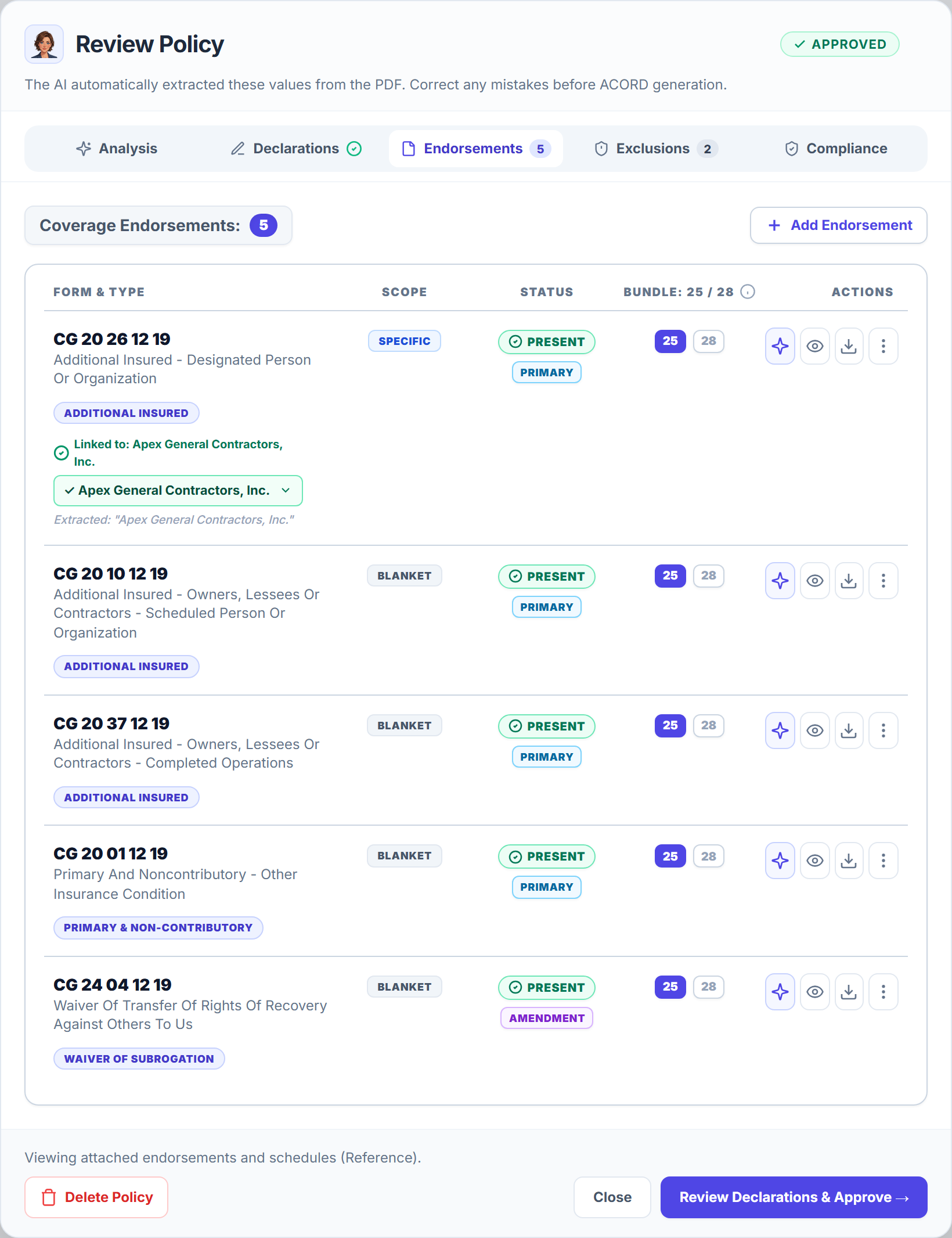
When Becky ingests a policy package for ACME Contractors, LLC, she slices every coverage endorsement into its own standalone PDF and populates the Endorsements table:
- Open the Review Policy drawer and click Tab 3: Endorsements.
- Review each form code (for example,
CG 20 26 12 19,CG 20 10 12 19,CG 20 37 12 19,CG 24 04 12 19), its category badge, and its Scope (SPECIFIC, ROSTER, BLANKET, or SCHEDULE). - For SPECIFIC endorsements, verify the Linked to: certificate holder dropdown (or choose + Create & Link... to create the holder directly from the extracted schedule name).
- In the Bundle: 25 / 28 column, click 25 (indigo) or 28 (emerald) to control whether the sliced PDF automatically bundles behind ACORD 25 or ACORD 28 certificates.
2. Slice or Re-Extract Endorsement Pages In-Browser
Need to attach a missing form or slice a specific page range from a full carrier packet? You never need an external desktop PDF splitter:
- Click Upload PDF on any Missing row (or open the 3-dot actions menu on a Present row and select Re-upload / Re-extract).
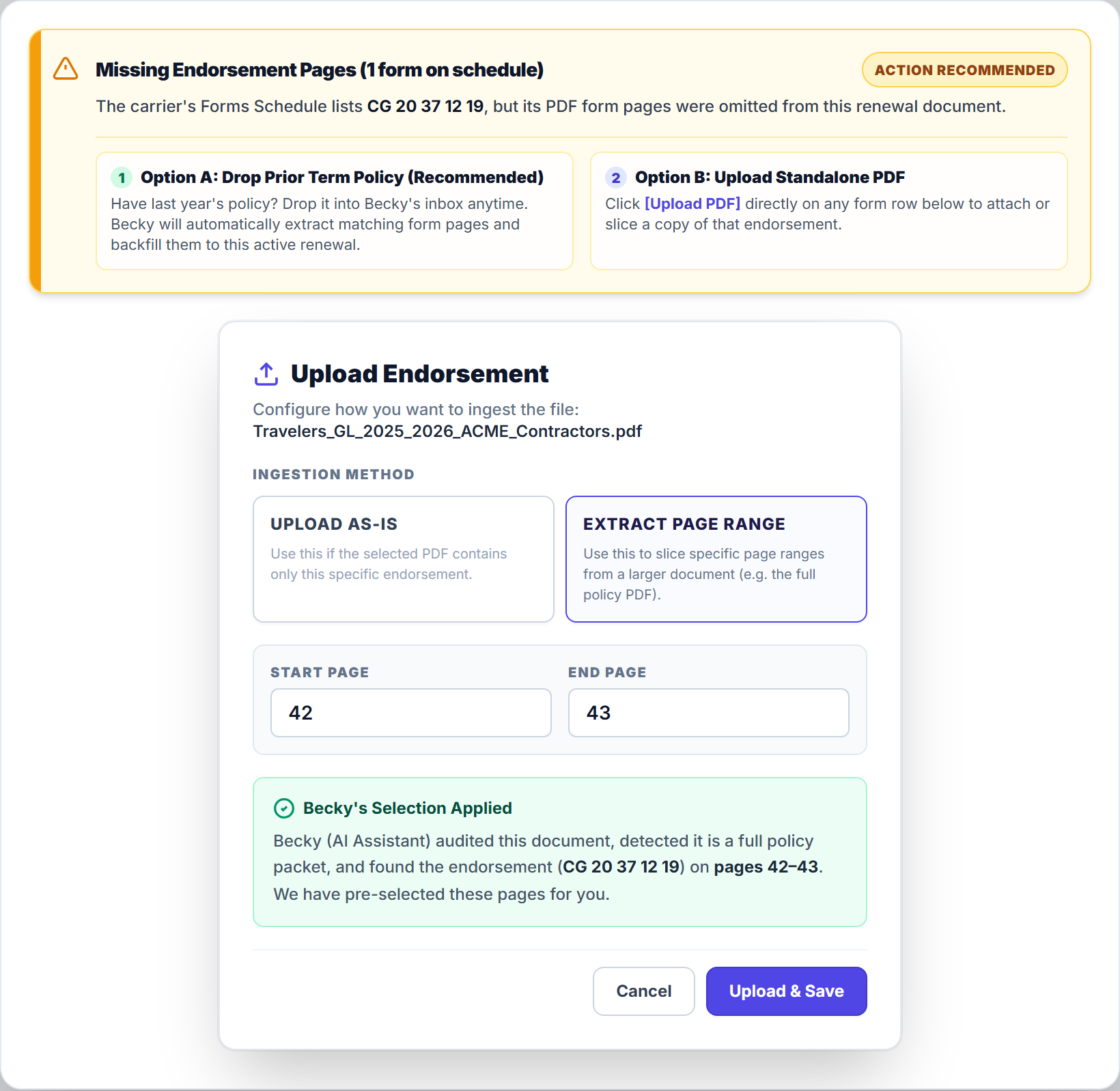
- In the Upload Endorsement modal, choose Upload As-Is (for a single-form PDF) or Extract Page Range (to slice pages from a full policy packet).
- When you select a full policy packet, Becky automatically audits the document, pre-fills the Start Page and End Page inputs (displaying Becky's Selection Applied), and verifies that the page text matches the target form code.
- Click Upload & Save to slice and attach the standalone endorsement PDF.
3. Backfill Missing Endorsement Pages at Renewal
Carriers frequently issue renewal packets that list standing endorsement form numbers on the Forms Schedule without re-printing the full endorsement pages:
- Option A: Drop Prior Term Policy (Recommended): Drop last year's expiring policy packet into Becky's Inbox anytime. Becky automatically locates the matching form numbers and backfills the sliced PDF pages into the active renewal.
- Option B: Upload Standalone PDF: Click Upload PDF directly on any Missing endorsement row to attach or slice a standalone copy.
Frequently Asked Questions
A BLANKET endorsement (such as CG 20 10 12 19 or a blanket Waiver of Subrogation) applies whenever required by written contract. A SPECIFIC endorsement names an individual entity (such as Apex General Contractors, Inc.) and displays a "Linked to:" dropdown so it bundles only for that holder. A ROSTER endorsement contains a multi-entity schedule that expands across the drawer with live search.
Related Guides in Uploading & Reviewing Policies
Was this article helpful?
Let our team know if you found what you needed.
arrow_backPrevious Article
Review Policy Limits, Coverage Gaps & Underwriting Analysis
Next Articlearrow_forward
Issue ACORD 25 Liability Certificates & Descriptions
Automate Your Commercial Agency Operations
Put Becky to work for your agency to review policies, audit coverage gaps, and issue verified ACORD certificates in seconds.